
ACCOUNT HUB BLOG
Published:
Integrations · Gmail · Slack · Multiple accounts · MCP · Comparison · Troubleshooting
How to compare a partner promise stated in email and Slack
Written by the AccountHub team.
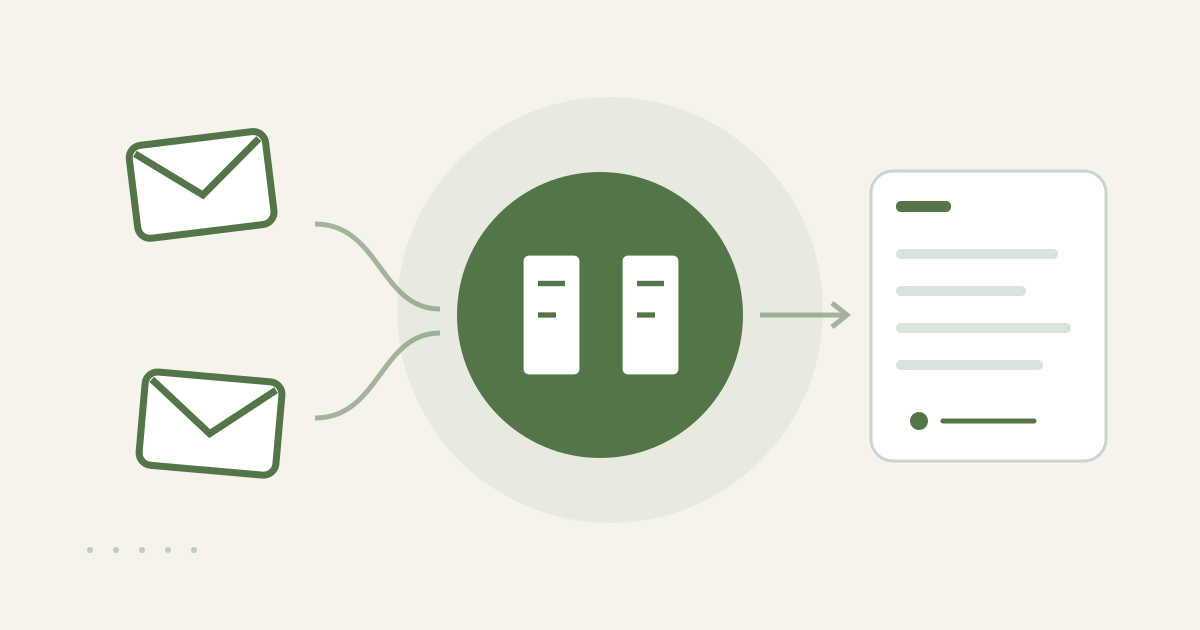
Put email and Slack statements side by side
With AccountHub, you can ask an AI to read connected Gmail and Slack messages and compare the stated delivery date, response date, message time, original wording, and source link in one table. This helps when email says Friday while Slack says next Monday. The table shows the difference; it does not decide which statement controls a contract.
Collect original messages with standard search
Search Gmail by partner, project, and date, then open the relevant message and note its sent time and wording. In Slack, narrow by channel, person, and project and inspect the message and thread. If standard search finds both sources, a manual side-by-side note may be enough. Preserve the sentence about the promise, nearby context, and message timestamp instead of copying only a summary.
Compare both sources through AccountHub
When messages are spread across accounts or channels, connect the needed Gmail and Slack sources to AccountHub. Ask the AI to find messages for the same project, partner, and period and place the relevant original passages with provenance side by side. Keep the request read-only: do not send or reply.
Replace the brackets with a real case and period:
Search my connected Gmail and Slack for [real project] and [partner name or email] between [start date] and [end date]. Find messages about delivery dates, response dates, amounts, or other promises. Make a table with service, message time, stated date, relevant original passage, and source link. If email and Slack differ, do not decide which is contractually correct; show the originals and explain the difference. Do not infer missing content or send, reply, or edit anything.
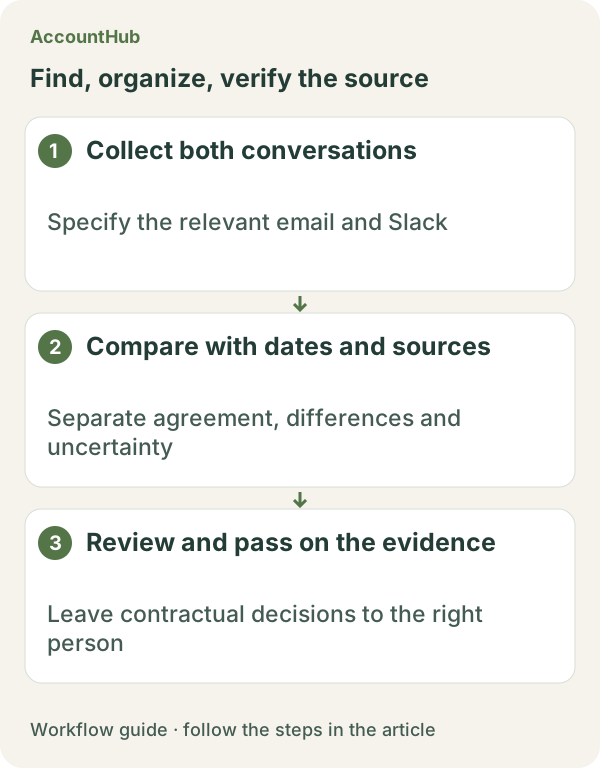
What the table enables
A fictional result might show email saying delivery by November 10 and Slack saying sharing on November 12, with each message time and source link in its own column. That is a discrepancy report. Determining whether email, Slack, a contract, purchase order, or approved minutes controls requires a separate source or responsible person. Do not confront a partner or change a deadline based only on an AI summary. Messages outside the scope or unavailable accounts remain missing.
Try a small real range
Replace the example fields with a real project, partner, and recent period, then start with a few safe messages. AccountHub is free to use, but the in-app AI trial has a daily limit. Gmail and Slack permissions and your AI service terms are separate. Avoid saving unnecessary contract or personal details; begin with the relevant original lines and dates.
This article is an operator explanation based on AccountHub’s official pricing page and guide. Check AccountHub pricing and the AccountHub guide for current terms.
Start with AccountHub for free. Connect the account you need and try one request through the in-app “Try the AI” entry. To use an external AI assistant, check its connection requirements in the setup guide.
Read the setup guide
The guide has the connection steps and example requests for your AI.
Read the setup guide →