
ACCOUNT HUB BLOG
Published:
Integrations · Gmail · Slack · Google Calendar · MCP
How to build an AI morning email, Slack and calendar briefing
Written by the AccountHub team.

Open email, check Slack, look at today's calendar. If you repeat this every morning, you could try asking your usual AI to help with the check.
AccountHub can read connected Gmail, Slack and Google Calendar sources so the AI can organize what needs attention. This is separate from setting up an automatic morning notification. Start with one check you request yourself.
First compare the alternatives
Native notifications, unread views and calendar lists may be enough. If you only need the day's appointments, opening Google Calendar may be faster.
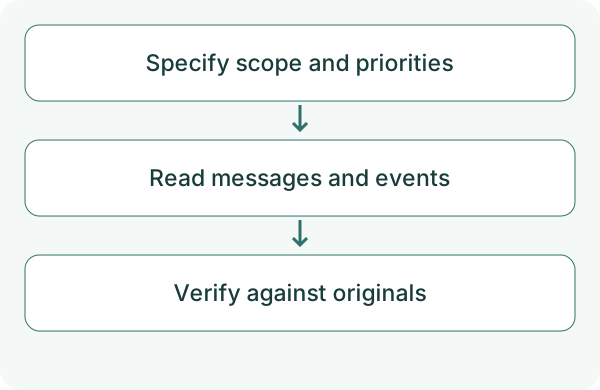
Try AccountHub when you want several connected sources in one conversation. Explain what matters before asking for priorities: deadlines, whether you are addressed, or your responsibilities. Treat the AI's prioritization as a suggestion.
Try a small check
Begin with the past day in one Gmail account. Follow the guide, check permission and verify the source of the results. Then add Slack and Calendar if needed. This test is one read-only request, not a recurring job.
Slack requires search permission. Check any reconnect notice if an older connection lacks it.
Using only the accounts I specify in AccountHub, check Gmail and Slack messages from the past 24 hours and today's Google Calendar events. Briefly group messages that may need a reply, today's deadlines and appointments. Include sources and reasons. Show any sources that were not retrieved separately, not as zero unread messages. Do not reply, post, create events or configure recurring notifications.
Check the result
'May need a reply' is the AI's proposal. Check responsibilities, dates and your time zone against the original messages and events. Searching the past 24 hours of Slack is different from checking your personal unread state.
If a connection failed, the briefing is incomplete. Narrow the scope and verify again. On a busy day, also check whether results were omitted.
Event listing has a result limit; the current default is 50 events per account. For a busy calendar, check the period and omissions before treating the result as complete.
What to try next
If one check matches, try the same request tomorrow morning. After it proves useful repeatedly, consider the scheduling method as a separate step.
Try one task with the connection guide
Sources
---
Draft from the AccountHub team. Not written or approved by Uchiyama. Sample prompts are not results from a personal-account test performed for this article. Features and sources checked on October 13, 2026.
Read the setup guide
The guide has the connection steps and example requests for your AI.
Read the setup guide →