
ACCOUNT HUB BLOG
Published:
Conversations · Slack · Multiple accounts · MCP · ChatGPT · Claude · Troubleshooting
Read a long Slack thread and draft a reply
Written by the AccountHub team.
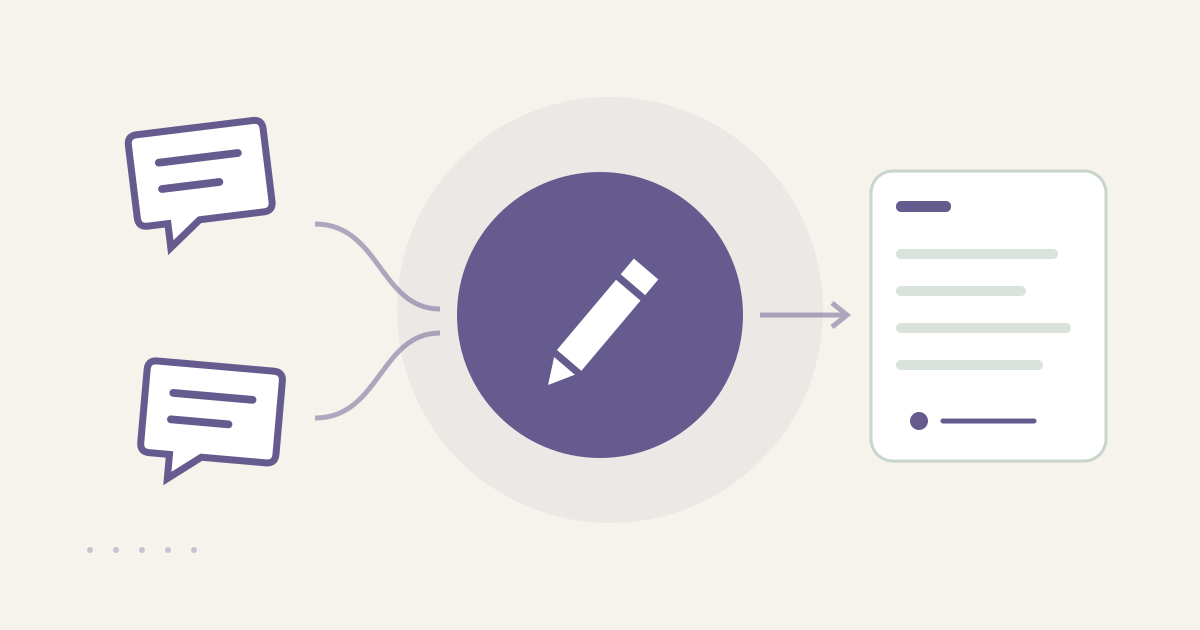
With AccountHub, one request can read a specified Slack thread, organize its points and open questions, and produce one reply draft for that same thread.
The problem
A long thread can mix questions, additions, alternatives and decisions. Writing a reply before checking the context can miss a condition. Pulling a similar thread into the answer can also confuse the recipient or deadline. Identify the original thread and workspace first, then stay inside that scope.
When native tools are enough
If one thread is easy to open and read, Slack's thread view and your own draft are enough. AccountHub helps when you want the long history grouped into points and unanswered items, or when you need to locate the target among connected workspaces.
A prompt to paste into your AI
Use your actual thread URL, channel and date range. Ask for a draft only; do not include a send instruction.
“Read only the thread at [thread URL or channel] in workspace [workspace name] during [date range]. Separate the topic, confirmed facts, unanswered questions and the next action requested from me. Then write one short reply draft for that same thread. Keep links to source messages. Do not include content from another channel or thread, and do not send, post or react.”
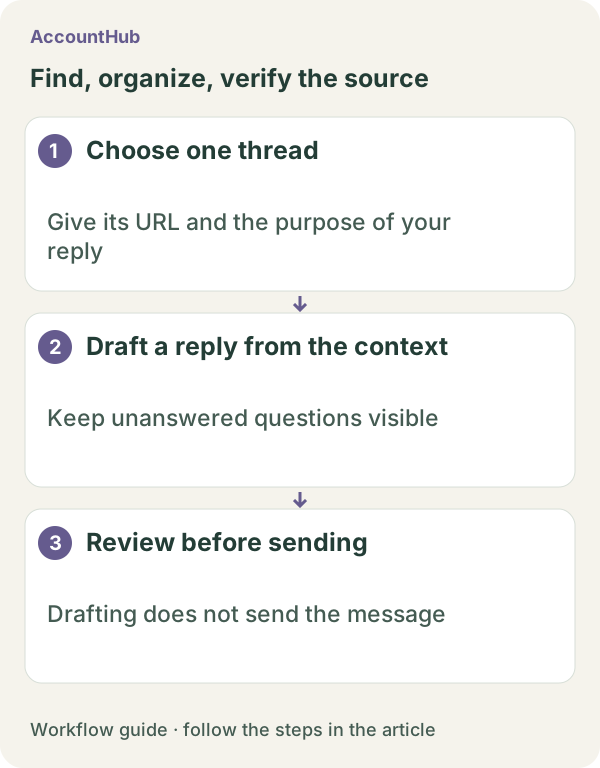
Sample output and limits
An explanatory fictional example could be “Key point: deadline still pending / Open question: image size / Draft: I will confirm the size and reply today.” For the real draft, compare every fact and date with the source thread and decide whether the wording creates a promise. Search coverage, thread permissions and retention depend on Slack.
Review before continuing
If native Slack opens the target thread, drafting there may be enough. With AccountHub, verify the workspace and thread again before copying the draft. This workflow stops before sending.
Pricing and trial conditions
The pricing page currently describes AccountHub as free with no paid plan sold. The in-app AI trial has a daily limit, and connected services and AI products have separate terms and limits.
Official references: AccountHub pricing https://accounthub.ai/pricing / AccountHub guide https://accounthub.ai/jp/guide / Slack search https://slack.com/help/articles/202528808-How-to-search-in-Slack
This is an operator's explanation. Verify the source thread, recipient and permissions before any send action.
Start with AccountHub for free. Connect the account you need and try one request through the in-app “Try the AI” entry. To use an external AI assistant, check its connection requirements in the setup guide.
Read the setup guide
The guide has the connection steps and example requests for your AI.
Read the setup guide →