
ACCOUNT HUB BLOG
Published:
Calendar · Google Calendar · MCP · Troubleshooting
What to check when AI gets a calendar time wrong
Written by the AccountHub team.

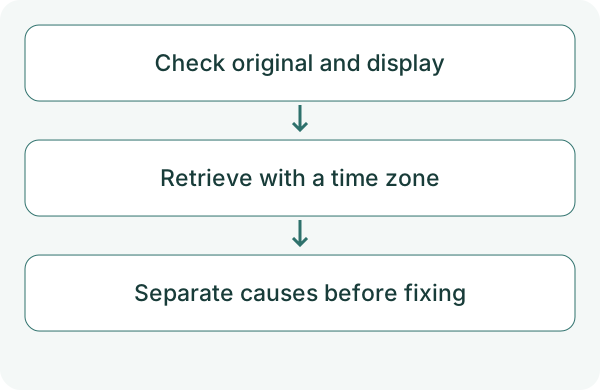
The AI says 10:00, but the calendar shows something else. Separate a changed event from a different display time zone before deciding what to fix.
When reading again through AccountHub, specify the date, time zone and calendar. Do not immediately rewrite the event. Start with one original you recognize.
First compare the alternatives
Check the original in Google Calendar and its display settings first. People in different regions may see the same instant at different local times.
If only the AI's explanation is wrong, the calendar may not need editing. Separate missing location information from an AI conversion error. Connecting AccountHub does not automatically fix either.
Try a small check
Choose one event whose time you know. Check original start, end and display time zone, then ask the AI to retrieve the same event. Replace the sample date below.
Using AccountHub, reread the specified event in the calendar I choose for October 19, 2026. Separately show account, calendar, start, end, time zone or offset in the retrieved result, and its display in Asia/Tokyo. Explain missing information without guessing. Do not change or delete the event.
Check the result
First check that it is the same event. Keep all-day events separate. In regions with daylight saving time, use the event date and regional time zone rather than a fixed offset.
If original data is correct, adjust the AI's display request and verify again. If the event is wrong, review the proposed change before editing. For availability suggestions, also check that busy periods and calculated gaps use the same time reference. Specify the time zone or UTC offset explicitly. For availability suggestions, distinguish retrieved busy intervals from slots calculated by the AI and compare with the original calendar.
What to try next
Use one event to locate the problem in data or display. Once the cause is clear, fix only the relevant part and reuse the conditions for other events.
Try one task with the connection guide
Sources
---
Draft from the AccountHub team. Not written or approved by Uchiyama. Sample prompts are not results from a personal-account test performed for this article. Features and sources checked on October 13, 2026.
Read the setup guide
The guide has the connection steps and example requests for your AI.
Read the setup guide →