
ACCOUNT HUB BLOG
Published:
Integrations · Gmail · Slack · Multiple accounts · MCP · Comparison · Troubleshooting
How to make a one-page restart brief from Gmail and Slack
Written by the AccountHub team.
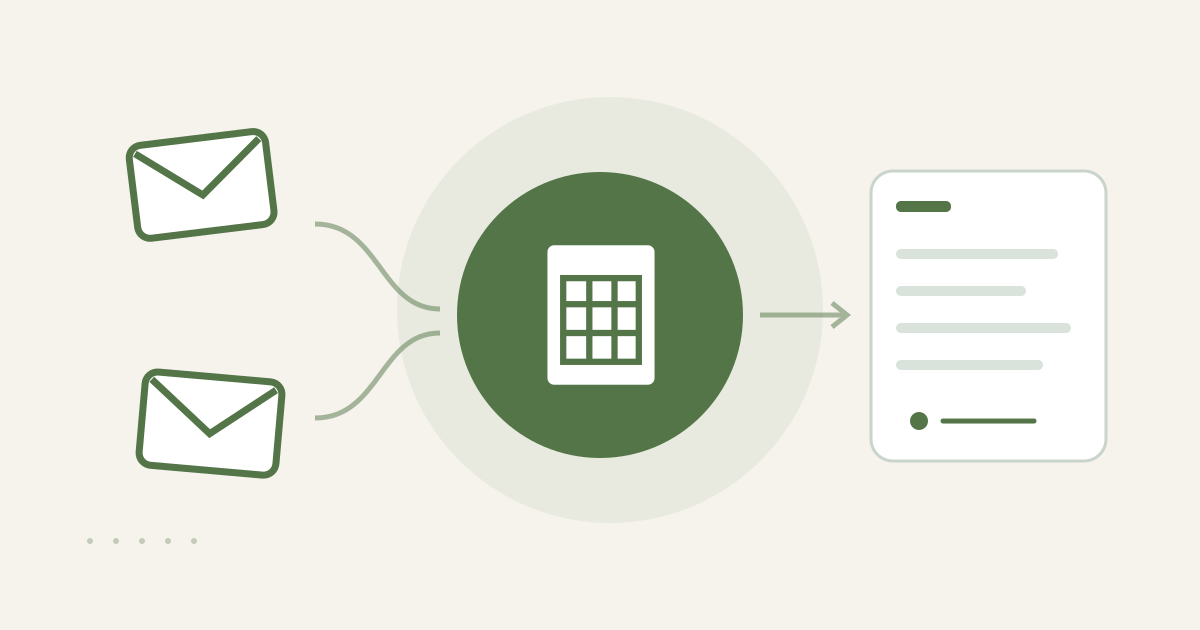
Make one restart brief from Gmail and Slack
With AccountHub, you can search connected Gmail and Slack for a defined project, period, sender, and channel, then organize the latest relevant context into decisions, open items, next step, and missing information. This gives you a one-page brief after a pause instead of reopening every inbox and channel.
Set a narrow scope first
Choose the project, channels, senders, keywords, and dates. Gmail search can combine a project phrase, sender, and date; Slack search can be limited to a channel and term. If a few standard results are enough, write the four sections manually. Start with only the period needed to restart so old chatter and unrelated work do not dominate.
Read both sources through AccountHub
When messages are split across accounts or channels, connect the required Gmail and Slack sources to AccountHub. Ask the AI to list the last relevant messages with provenance and classify them. Keep the first request read-only: do not ask it to send, reply, or complete a task.
Replace the brackets with a real case and range:
Search my connected Gmail and Slack for [real project] between [start date] and [end date]. Limit the search to [email senders, Slack channel, and keywords]. List the last relevant messages with date, sender, service, and source link. Classify them as decision, open item, next step, or missing information. Do not infer content that is absent. Show both sources when statements conflict. Do not send email, post to Slack, reply, or complete a task.
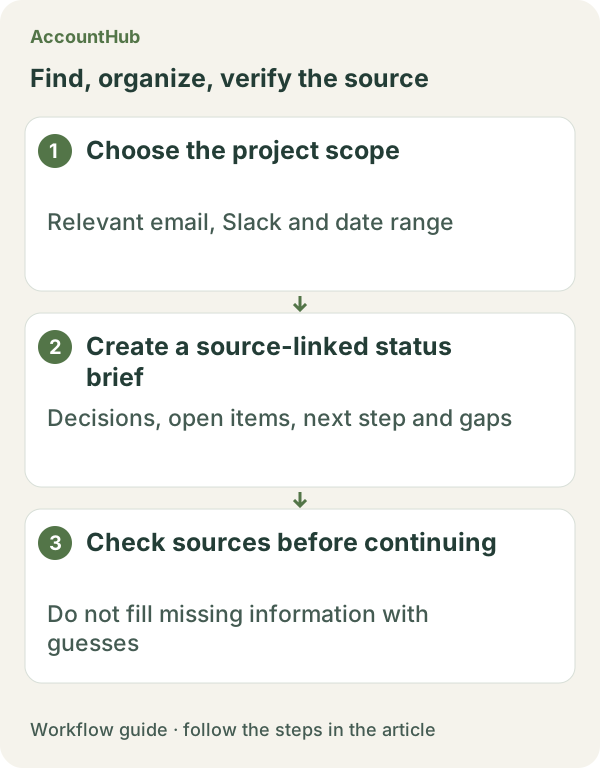
What the one-page result can show
A fictional result might put “review the estimate at the next meeting” under decision, “who approves the deadline” under open item, “ask the owner” under next step, and “latest attachment not readable” under missing information. The last message is not automatically a formal decision. Open both original links when Slack and email differ. Information outside the date range or from an unconnected service remains missing.
Try a short real range
Replace the example fields with a real project and the last few days, then start with a few safe emails and one channel. AccountHub is free to use, but the in-app AI trial has a daily limit. Gmail and Slack permissions and your AI service terms are separate. Keep the first brief short and avoid saving unnecessary customer or confidential text.
This article is an operator explanation based on AccountHub’s official pricing page and guide. Check AccountHub pricing and the AccountHub guide for current terms.
Start with AccountHub for free. Connect the account you need and try one request through the in-app “Try the AI” entry. To use an external AI assistant, check its connection requirements in the setup guide.
Read the setup guide
The guide has the connection steps and example requests for your AI.
Read the setup guide →