
Connect ChatGPT
Connect AccountHub to use email and calendars from ChatGPT, and set up shared AI memory.
Before you start
Sign in to AccountHub and connect the service accounts you want to use from Settings → Connected accounts. Then sign in to the AI you are connecting.
New here? Connect your services first →Your AI plan and permissions must allow custom connections. Company settings may also restrict access; check the current requirements before you start. Official requirements ↗
Steps
Connect ChatGPT
① Open ChatGPT's Plugins page
- Open
chatgpt.com/pluginsin your browser (ChatGPT's "Plugins" page) - Click "Add ▾" in the top right
- Click "Create MCP app"
- Once the "New Plugin" dialog opens, continue with ② below
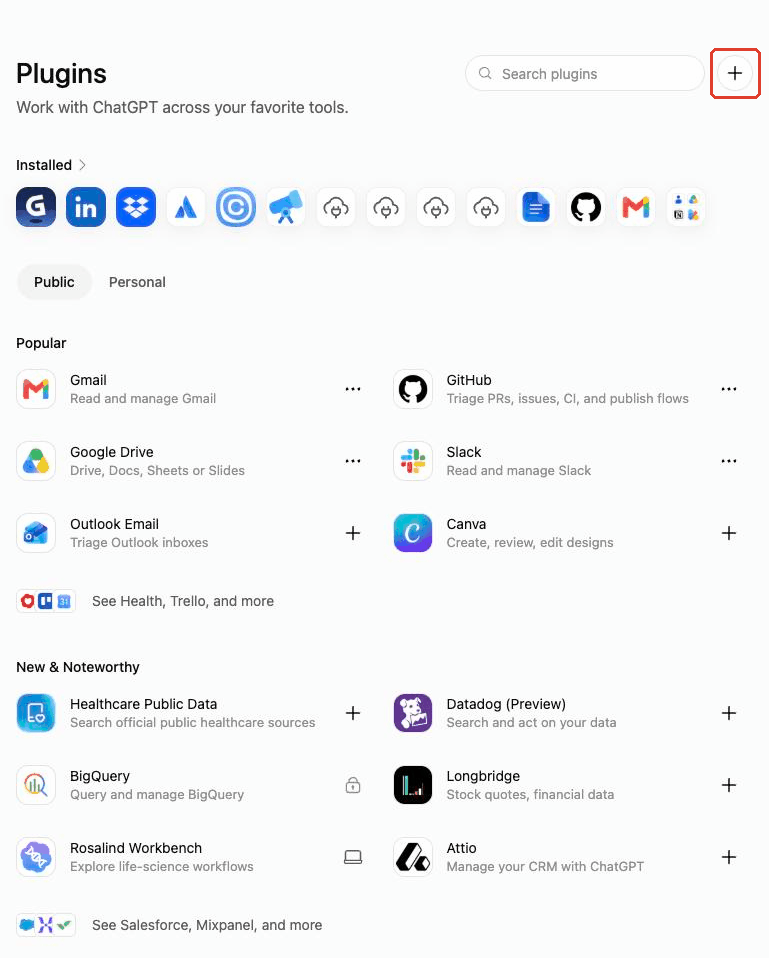
If "Create MCP app" isn't in the Add menu
- Some accounts need Developer mode turned on. If Settings → "Security and login" (where OpenAI's official docs describe it) has a "Developer mode" toggle, turn it on, reload chatgpt.com/plugins and open "Add ▾" again. Eligible plans: Plus / Pro / Business / Enterprise / Education. Some accounts have no toggle anywhere (confirmed 2026-09-26 and 2026-09-28) — for those, "Add ▾" → "Create MCP app" simply is the normal path.
- In a work or school workspace an admin may have disabled it. Switch to your Personal workspace and check again.
- If it still doesn't appear, connect Claude (claude.ai) first, or tell us via "Something's not working" on the "Connect your AI" screen — that helps us fix this guide.
Plans and notes
- Eligible plans: Plus / Pro / Business / Enterprise / Education (Free・Go can't).
- The adding step is done in a desktop browser (on a phone browser use "Request desktop site"; once added, the phone/PC app works too). If you can't see "Add ▾", first make sure you are in a desktop browser.
② Register it as a plugin in ChatGPT
- Set Name to "AccountHub"
- Leave Connection on "Server URL"
- Paste this URL into the URL field below it
The URL to paste (the same for everyone)
https://accounthub.ai/api/mcp - Leave Authentication on its default, "OAuth"
- Check "I understand and want to continue"
- Click "Create"
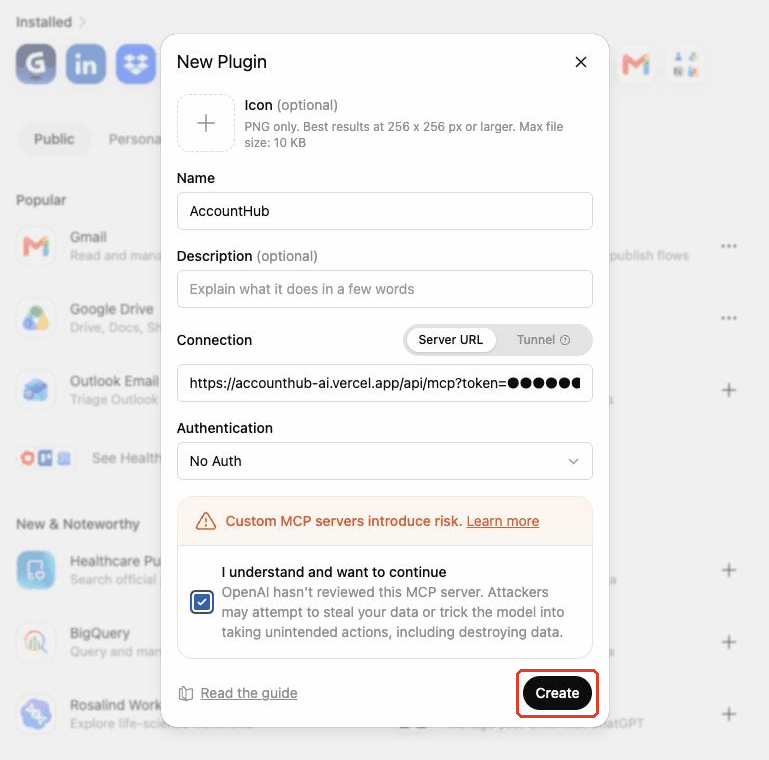
The "New Plugin" dialog, filled in (finish with "Create" in the bottom right) - Click "Continue to AccountHub" (ChatGPT's confirmation screen listing three points about permissions)
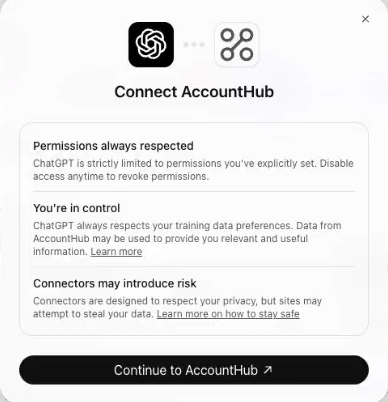
ChatGPT's confirmation screen after "Create" (press the black button) - In the popup, sign in with Google (skipped if you are already signed in to AccountHub)
- Click "Allow" (that is AccountHub's permission screen)
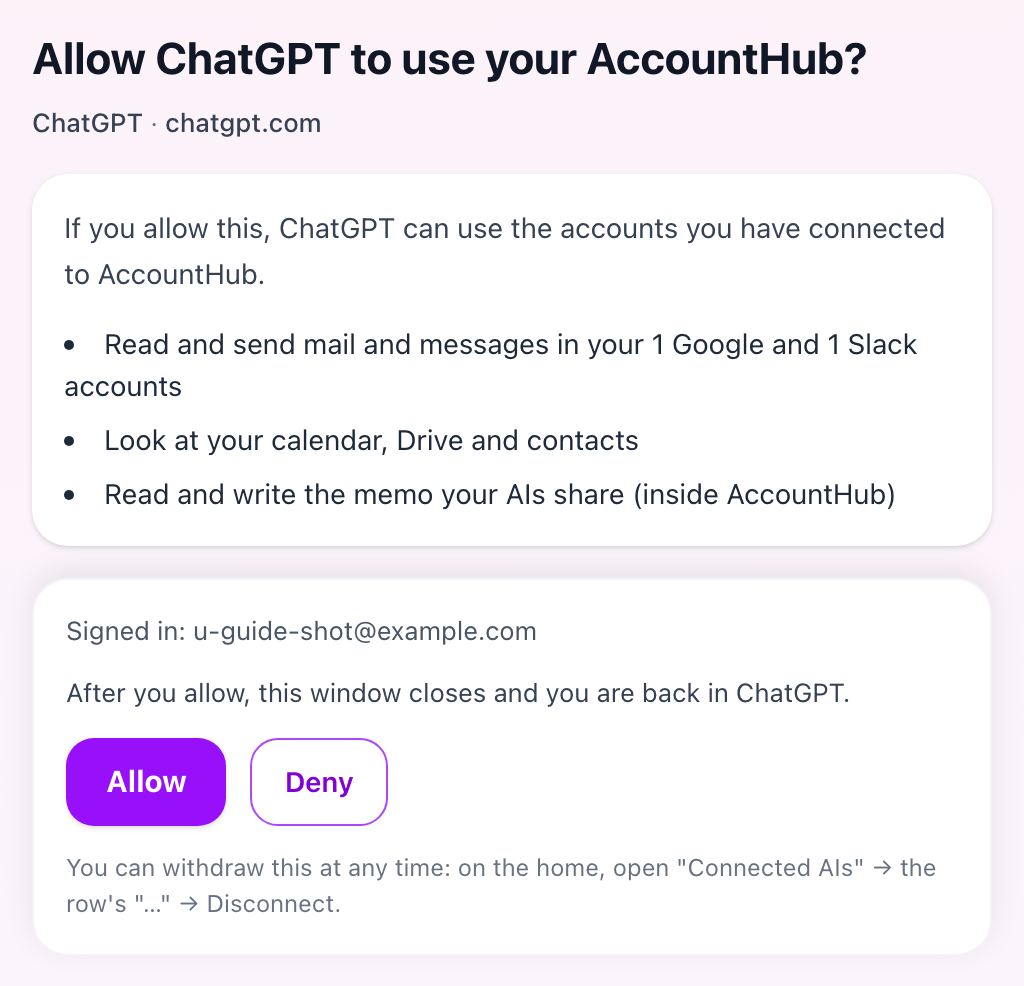
AccountHub's permission screen (Allow takes you back to ChatGPT)
Reviewing its settings later
- Open
chatgpt.com/pluginsand click "Personal" - Open "AccountHub" under "Created by you"
- Click "…" in the top right → "Manage" (the page with the permission, the connected accounts and Uninstall)
- Click the "Permission" row and choose when ChatGPT should ask you
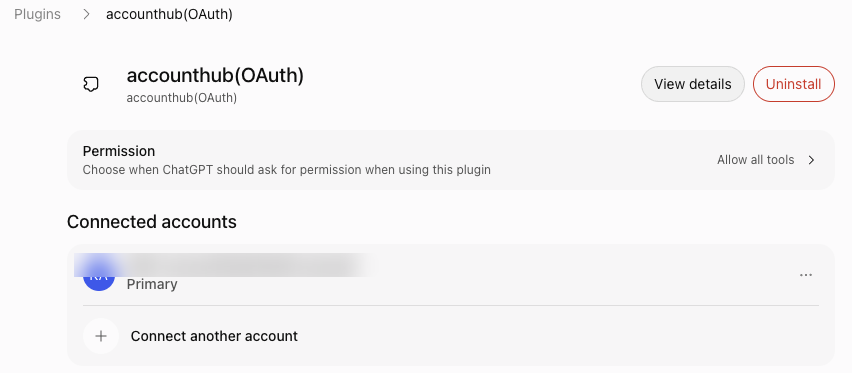
The plugin management page (the account name is blurred)
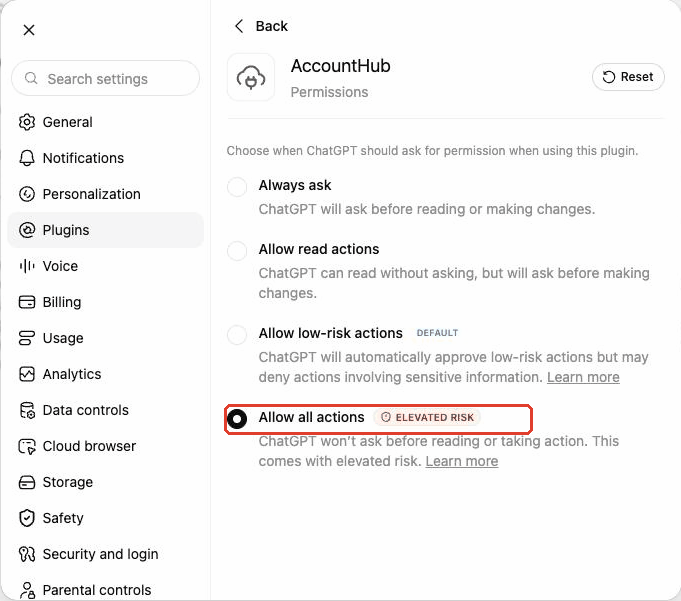
The "Permission" row has five options (Default / Always ask / Allow read-only tools / Allow low-risk tools / Allow all tools). Start with the default or "Always ask". Once it works, "Allow all tools" skips the per-action confirmation (ChatGPT marks it high risk — this tool can send email and create events too, so choose with that in mind).
If sign-in isn't available (connect with a dedicated connection URL)
If the sign-in popup never opens, or pressing Allow doesn't finish connecting, you can connect with a dedicated connection URL instead.
- Issue and copy a dedicated connection URL (when reading this guide, the button is in the same "If sign-in isn't available" section on the screen you open from "Connect your AI →" in Settings).
- Paste that dedicated connection URL into the URL field instead of the shared connection URL.
- Switch Authentication to "No Auth" and click "Create" (no sign-in popup appears).
token=… in the connect URL is your personal key. Don't share it with anyone.Can't find "Add ▾" or the plugin?
- Check that "Lockdown mode" in settings is off
- Check that you're in a Personal workspace (a work/school workspace may be blocked by admin settings)
- Try it in a regular new chat, not inside a "Project"
- Force-reload the page (Mac: Cmd+Shift+R / Windows: Ctrl+Shift+R)
- If it still doesn't show up, the feature may not have reached you yet (the plugin screen's location changed in July 2026, so rollout can lag by hours to days depending on your account). Wait a bit and check again.
Check the result
In a new conversation in your connected AI, send the prompt below. Check that the service types and counts match the accounts you connected to AccountHub. This check does not verify message-body retrieval, write actions, or shared AI memory.
Open a new conversation in ChatGPT and enter
Example AI message · Copy and paste into your AI’s message box
Run AccountHub’s read-only list_accounts tool and tell me only the types and counts of connected services. Do not retrieve email or message bodies, and do not send, create, update, or delete anything.
If the types or counts differ, compare Settings → Connected accounts with the account used by the AI connection. Matching counts complete this connection check.
If something goes wrong
- If you cannot select AccountHub or finish connecting, check the connector settings and the account you signed in with. Ask your administrator about company-managed connections.
- After connecting, select AccountHub in a new conversation before checking. A connected status alone does not confirm account-list access.
Already connected?
Before recreating a connection, check that AccountHub is enabled. Refresh the tool list if new tools are missing.
- Under Personal, open the AccountHub plugin you created, using the name you chose when connecting (for example, Accounthub(OAuth)). Expand the list if it is not visible.
- Open Manage, then choose Refresh tools in the Manage app section near the bottom.
If you cannot find the refresh action, ask your administrator whether your company manages the connection.
Check the result →Guides by task
Choose what you want to do, with preparation, steps, and checks together on one page.
- Use shared AI memory →Save work information and decisions in AccountHub, then use them in another AI without explaining them again.
- Connect and read Chatwork →Connect a Chatwork account, then use your AI to read its rooms and the messages you need.
- Start a chat →Choose a person, send an invitation, and check acceptance before starting a direct or group conversation.
- Start working together as a group →Create a shared project, invite members, and start talking in that project’s chat.
- Connect Claude →Connect AccountHub to use email and calendars from Claude, and set up shared AI memory.
- Connect Muse →Set up Muse to use email and calendars, and use work information and decisions through shared AI memory.
- Connect Grok →Connect AccountHub to use mail and calendars from the Grok you already use. Follow the connection guide to get started.
- Connect Perplexity →Connect AccountHub to use mail and calendars from the Perplexity you already use. Follow the connection guide to get started.