
ACCOUNT HUB BLOG
Published:
Calendar · Gmail · Google Calendar · Multiple accounts · MCP · Troubleshooting
How to compare an updated meeting invitation with your calendar
Written by the AccountHub team.
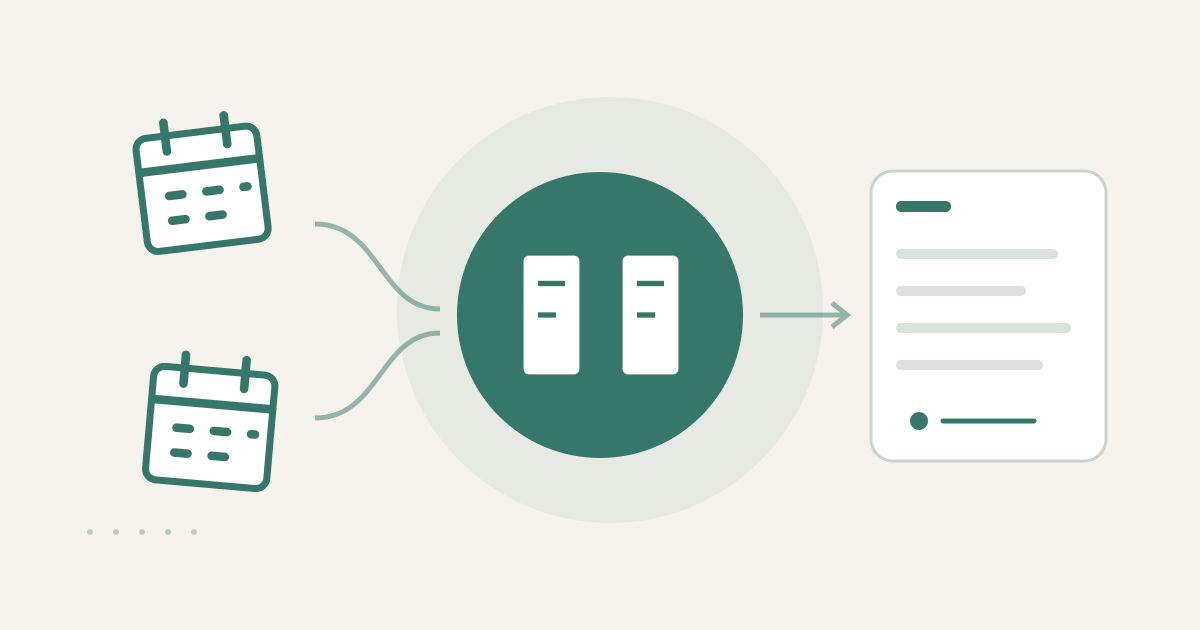
Compare Gmail and Calendar in one request
With AccountHub, you can ask an AI to compare connected Gmail and Google Calendar sources and put the meeting name, times, time zone, and meeting URL into one review table. This helps when a change notice is in the inbox while the calendar appears to retain the old slot, or when work and personal Google accounts are involved. You can review the original invitation and current event together before deciding whether to update anything.
Why the mismatch needs a review
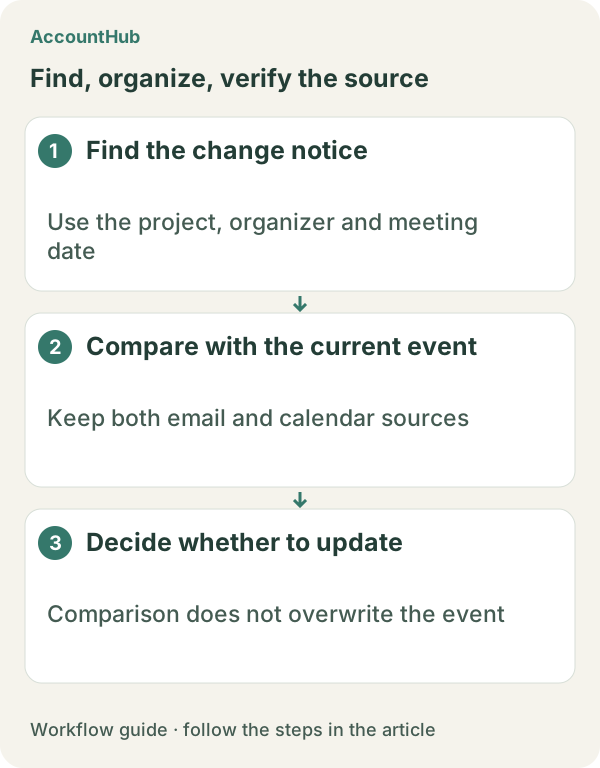
Editing immediately can turn an unconfirmed change into your schedule. First collect the email received time, organizer, old and new times, and the current calendar display in the same table.
A manual check may be enough
For one meeting, search Gmail by the organizer or meeting name. Open the first invitation and each change notice. In Google Calendar, open the event on the same date and compare the start and end time, time zone, organizer, and meeting URL. Check whether the email uses Japan time while the calendar is displaying another zone. If there are only two notices, a small manual note with the received times and stated changes may be all you need.
Read both sources through AccountHub
If the message and calendar are in different accounts, connect only the Gmail and Google Calendar accounts you need to AccountHub. Ask for search and comparison only, and do not ask the AI to create, edit, or delete the event.
Replace the bracketed parts in this prompt with your real meeting name and date range:
Read Gmail invitations containing the subject phrase [real meeting name] between [start date] and [end date], and read the matching event in my connected Google Calendar. For each email, list received time, organizer, old and new times, explicitly stated time zone, and whether a meeting URL is present. Put the current calendar time in a separate column and show differences. Do not create, edit, or delete any event. If a field is missing, say so and show the source.
Treat the result as a review sheet
A fictional result might show a change email for November 3, 15:00–16:00 Asia/Tokyo, while the calendar still shows 14:00–15:00. That is an inconsistency to investigate, not proof that the latest message is correct. Open the original message, check the sender and wording, and ask the organizer or participants when needed. If an AI converts a time zone, compare the conversion with the time zone written in the source before changing anything.
A small free trial
Replace the example fields with a real meeting and date range, choose one non-sensitive event, and keep the request read-only. AccountHub is free to use, but the in-app AI trial has a daily limit. Gmail, Google Calendar, and the AI service you use may have separate terms and plans. Limit the date range and fields when the invitation contains personal information.
This article is an operator explanation based on AccountHub’s official pricing page and guide. Check AccountHub pricing and the AccountHub guide for current terms and availability.
Start with AccountHub for free. Connect the account you need and try one request through the in-app “Try the AI” entry. To use an external AI assistant, check its connection requirements in the setup guide.
Read the setup guide
The guide has the connection steps and example requests for your AI.
Read the setup guide →