
ACCOUNT HUB BLOG
Published:
Calendar · Gmail · Google Calendar · MCP · Comparison · Troubleshooting
How to find an online meeting URL in email or a calendar event
Written by the AccountHub team.
Put meeting URL candidates in one list
With AccountHub, you can ask an AI to read connected Gmail and Google Calendar sources and put the meeting name, time, organizer, and URL provenance into one list. This helps when you remember the meeting but cannot tell which message contained the link, or when the calendar has a title but no obvious URL. Finding candidates and successfully joining the call remain separate checks.
Why one found link is not enough
A calendar description may contain only the title, while an invitation thread contains both an old and a new URL. A single URL may belong to another occurrence. Collect candidates, match them with time and organizer, and check browser access separately.
Search the standard tools first
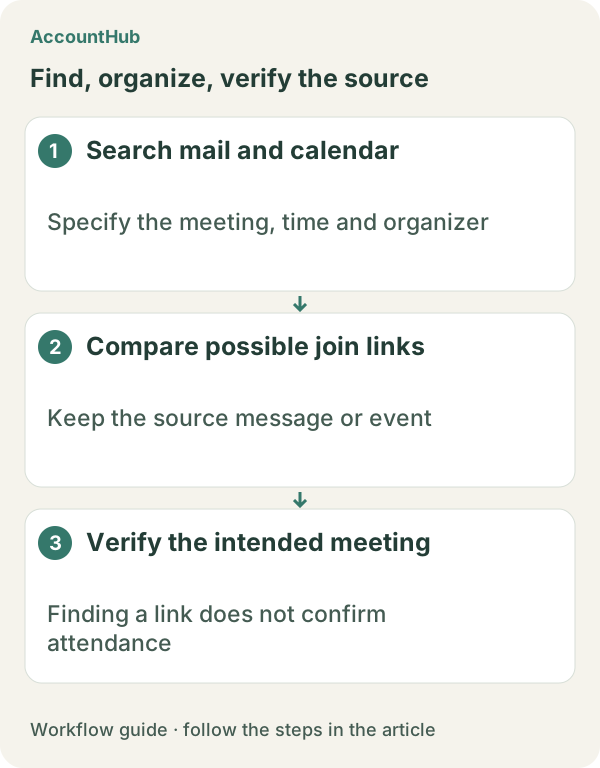
Search Gmail by the meeting name, organizer, and date. Open the invitation and change notices, then inspect the links in the message. In Google Calendar, check the event description, location, and video meeting field. A short subject can match several meetings, so add a date or participant. If the standard searches identify one event quickly, you may not need another tool. For multiple notices, place the received time and URL domain side by side.
Organize candidates with AccountHub
If the work email and calendar are in different accounts, connect the required Gmail and Google Calendar accounts to AccountHub. Ask for extraction and comparison only. Do not treat opening a link, joining the call, or recording attendance as an automatic result.
Replace the brackets with your real meeting name and date range:
Search my connected Gmail and Google Calendar for [real meeting name] between [start date] and [end date]. List every possible join URL with its source, email received time or event time, meeting name, organizer, and URL domain. Group candidates that appear to belong to the same meeting and label an old or uncertain URL with the reason. Do not open links, join a meeting, or edit any calendar event.
Separate a candidate from successful access
A fictional result might show URL A in the latest change email and URL B in the calendar description. Even if the AI ranks URL A first, it cannot establish that the meeting room will accept you. Authentication, organization restrictions, an expired link, and browser state can affect access. Confirm the organizer and time, open the chosen URL in your own browser, and check whether the meeting entry screen appears. If it fails, ask the organizer for the current link.
Try one safe example
Replace the example fields with a real meeting and date range, choose one non-sensitive invitation or one past event, and request only a candidate list. AccountHub is free to use, but the in-app AI trial has a daily limit. Gmail, Google Calendar, and the AI service you use have separate terms and permissions. Keep meeting IDs and personal data out of saved memory unless they are necessary.
This article is an operator explanation based on AccountHub’s official pricing page and guide. Check AccountHub pricing and the AccountHub guide for current terms and availability.
Start with AccountHub for free. Connect the account you need and try one request through the in-app “Try the AI” entry. To use an external AI assistant, check its connection requirements in the setup guide.
Read the setup guide
The guide has the connection steps and example requests for your AI.
Read the setup guide →