
ACCOUNT HUB BLOG
Published:
Calendar · Google Calendar · Multiple accounts · MCP
How to find availability across multiple Google calendars
Written by the AccountHub team.

When you keep work and personal calendars separate, checking just one can make a time look free. Start by making sure both can be checked.
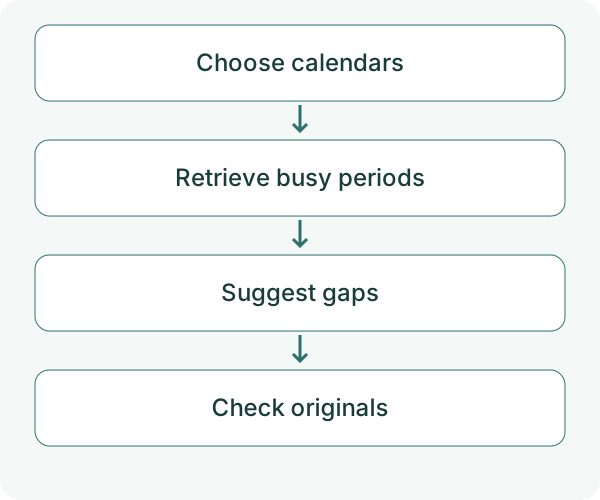
There are a few ways to find availability across multiple Google calendars. You can compare them in Google Calendar, or ask your usual AI through AccountHub. Here, we will retrieve busy periods and look for a 30-minute gap. If a calendar cannot be read, keep it marked as unchecked.
When Google Calendar is enough
Compare calendars you can access directly. Google's Find a time feature lets you compare guests' shared schedules. Checking multiple calendars for conflicts on an appointment booking page has eligible Google Workspace or Google One plan requirements. Compare schedules in Google Calendar, Check booking-page availability
| Approach | Useful when | Check first |
|---|---|---|
| Compare calendars in Google Calendar | You want to decide visually | Access and the calendars included |
| Use an appointment schedule | You want someone to book a slot | Plan eligibility and conflict-check settings |
| Use AccountHub through your AI | You want to ask about connected accounts in a conversation | Successful retrieval, coverage and original events |
If it would be useful to ask your usual AI, “Where do these two calendars have a 30-minute gap?”, try that with AccountHub.
Start with one calendar for one day
Follow the connection guide to connect your Google account and AI. Select Google Calendar, review the requested permissions and follow your organization's rules.
Ask for the connected account and calendar lists first. One Google account can have several calendars. Identify the primary calendar or the specific secondary calendar you intend to check.
This is a sample prompt. Replace the date and account labels with your own:
Use AccountHub to list my connected Google accounts and calendars. Then check busy periods on the one calendar I specify for October 19, 2026, from 09:00 to 18:00 in Asia/Tokyo. Show which account and calendar were checked, and any failed retrievals separately. Do not create or change events.
Check that a familiar event matches the time in the original calendar. Once you know it was read correctly, move on to looking for a gap.
Add the second calendar and ask for a 30-minute gap
After the first check matches, connect the second account or include another calendar you already connected.
Check busy periods for the two work and personal calendars I specify on October 19, 2026, from 09:00 to 18:00 in Asia/Tokyo. Only if both were checked successfully, suggest up to three gaps of at least 30 minutes. If anything failed or was not retrieved, explain the checked scope and what is missing; do not claim complete availability. Do not book a meeting or create an event.
AccountHub returns the busy periods recorded in your calendars. The AI uses those results to suggest gaps. Add travel time or breaks to your request if you need them. Commitments you have not entered will still be missing, so check the original calendars before deciding.
If a time looks unexpectedly free
- Check whether secondary calendars were included. Some AccountHub operations default to the primary calendar.
- Check all-day events, busy/free settings and the time zone.
- Check calendar permissions, not just whether the account is connected. Resolve any reconnect notice first.
A candidate slot is not a reservation. Connecting an account also does not grant access to someone else's private schedule.
Try a check you can verify
Try one day first. If the result matches, add the second calendar. Being able to check both with the same question could be useful the next time you arrange a meeting.
Start with one calendar in the AccountHub connection guide
---
This is a draft from the AccountHub team, not an article written or approved by Uchiyama. The sample prompts are not results of a personal-account test performed for this draft. Features and sources checked on October 12, 2026.
Read the setup guide
The guide has the connection steps and example requests for your AI.
Read the setup guide →