
ACCOUNT HUB BLOG
Published:
Integrations · MCP · ChatGPT · Gmail · Slack
Connect Muse to AccountHub: use a decision from ChatGPT in your next AI task
You worked on a plan in ChatGPT and want to continue in Muse. Explaining the background and pasting the same email again takes preparation. With AccountHub connected to both assistants, you can find connected correspondence and use decision notes saved in AccountHub. Here is how to connect Muse and try a practical workflow.
Written by the AccountHub team.

Do you explain the same background every time you switch AI?
Imagine deciding with ChatGPT that your first event will be a 30-minute online taster session.
Later, you open Muse to write the invitation. Muse does not have that decision, so you explain the plan again. You also go back to email, find a reply and copy it into the conversation.
A shared place for the information you need can make it easier to pick up the work. AccountHub can serve as that connection point.
Two ways this helps people who already use ChatGPT
Find correspondence from Muse too
A supported AI can refer to Gmail and Slack accounts connected to AccountHub. While drafting in Muse, you can ask for relevant correspondence in the same conversation.
Use AccountHub to find recent replies about the taster session. Summarize what potential participants want to know.
Check the sender, date and original message, then ask for an invitation draft that answers those questions. This is a fictional workflow example, not an actual message or participant record.
Read a decision from ChatGPT in Muse
When an important decision has been saved in AccountHub's AI memory from ChatGPT, Muse can read that record for the next task. Both assistants need their AccountHub connection and memory setup.
First, ask ChatGPT:
Record this decision in AccountHub's AI memory: the first event will be a 30-minute online taster session.
Check what was saved, then continue in Muse:
Read the taster-session decision from AccountHub's AI memory. Use it to draft an invitation email.
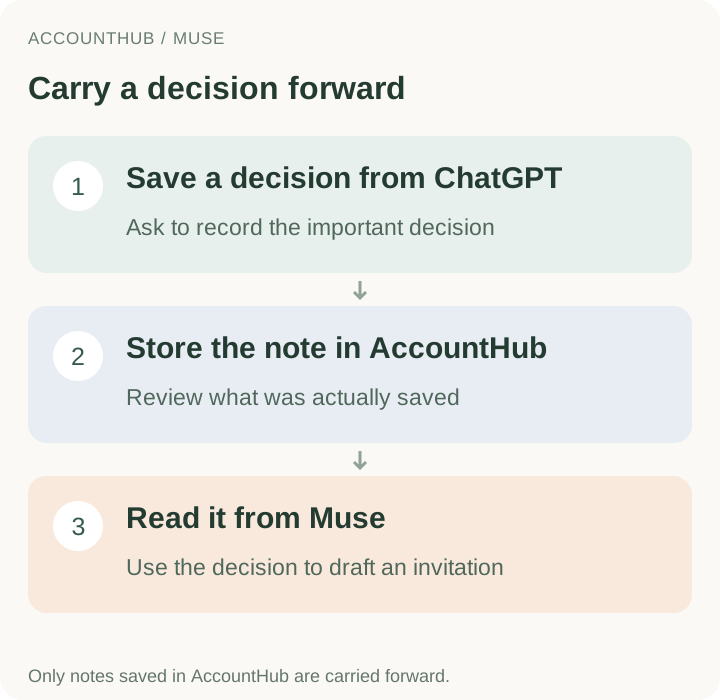
The shared material is a note saved in AccountHub. Your full ChatGPT conversation and ChatGPT's built-in memory do not automatically copy into Muse. Add any necessary background that was not saved.
How to connect Muse and AccountHub
Connect the Google or Slack accounts you want to use in AccountHub first. Signing in alone does not connect that account's email.
1. Choose Muse in the guide
Open the AccountHub setup guide, choose Muse and copy its connection request.
That request includes the connection and AI-memory setup. Use the current guide's full request rather than replacing it with one of this article's shorter work examples.
2. Send it in Muse and authenticate with Connect
Send the copied request in a Muse conversation. Use the AccountHub connector's Connect button, sign in to AccountHub and allow access.
The current guide also covers updating an existing connector. Follow Muse's instructions before creating another copy yourself.
3. Check setup and read the saved record back
The guide's request includes saving and reading back an AccountHub test note. Keep the returned record ID and test phrase, then check that a new conversation can read the same record.
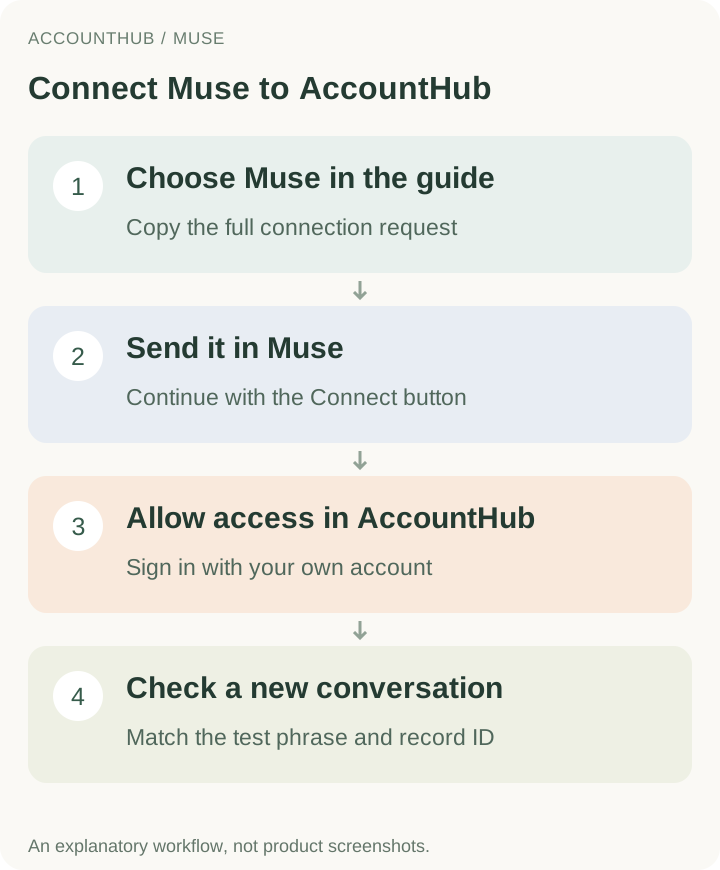
A connected label does not prove memory works in a new conversation. A note saved only in Muse's own memory is not proof of an AccountHub record. Refer to the official guide for the current instructions.
Try it once with work you are already doing
Start with one invitation or proposal. Find a relevant reply, read the saved decision and ask for a draft.
Check the plan's decision note and the recent reply through AccountHub. Draft the invitation, leaving undecided details open.
Check the original correspondence and saved record, then review the wording yourself. This example does not ask AI to send the email.
You can keep thinking in ChatGPT and use those saved decisions when working in Muse. If starting another AI conversation means gathering the same context again, this is a workflow worth trying.
Start with AccountHub · Read the Muse connection steps
AccountHub is free to use. Muse and ChatGPT have their own access requirements and pricing. Prepared on 24 October 2026 from AccountHub's current public guide. The work examples are illustrative.
Read the setup guide
The guide has the connection steps and example requests for your AI.
Read the setup guide →