
ACCOUNT HUB BLOG
Published:
Files · Gmail · Google Drive · MCP
How to find email attachments and Google Drive files with AI
Written by the AccountHub team.
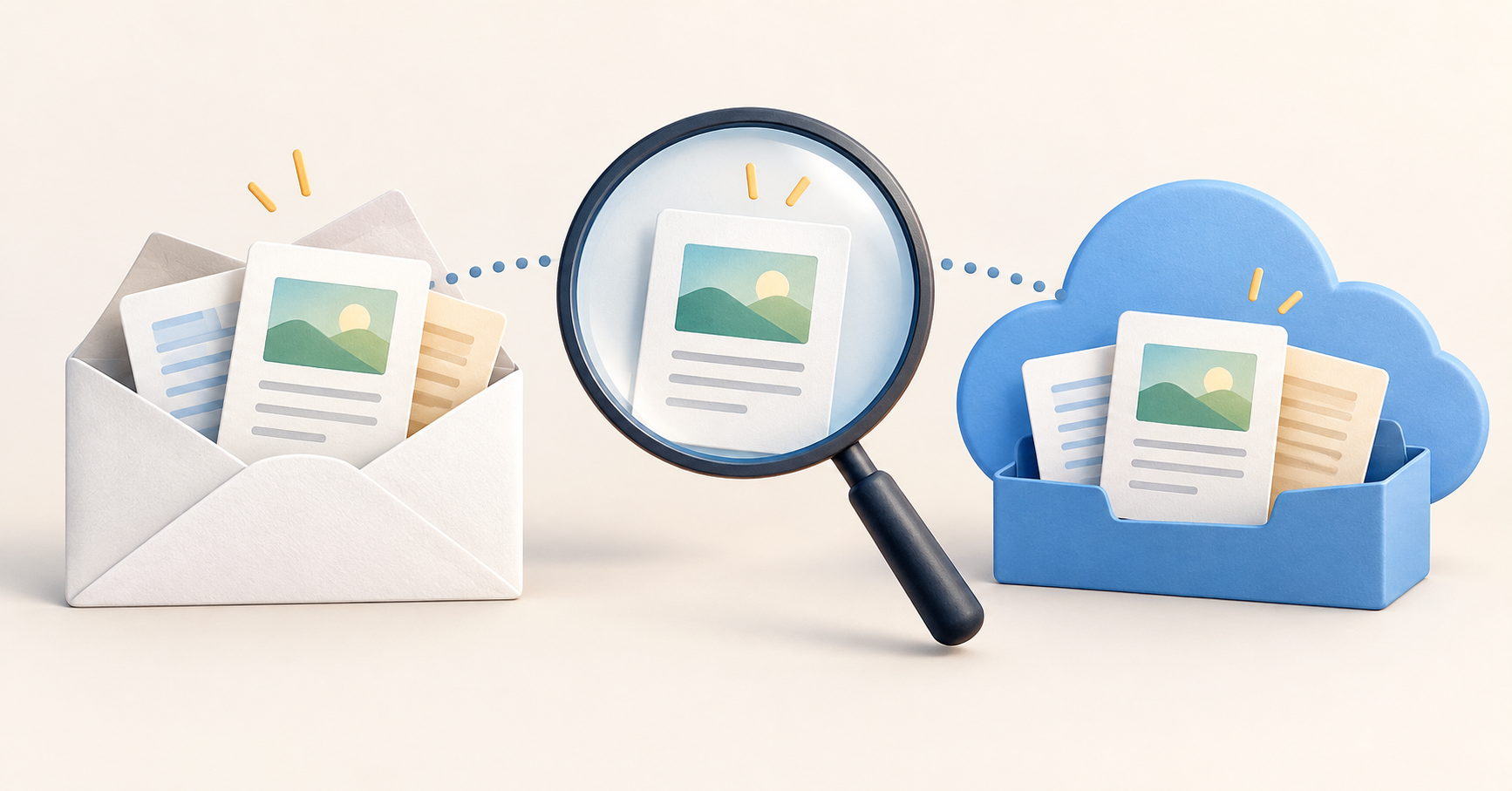
Was that document attached to an email, or was it a Drive link? To find email attachments and Google Drive files, start by searching the same project term in both places.
AccountHub lets your usual AI search connected Gmail messages and Drive file candidates. Finding an email is different from reading its attachment. Here, the goal is to collect references and open the original document.
First compare the alternatives
Gmail can narrow searches by attachments and filenames. Drive supports filters such as type and modification date. If you know where the document is, native search is a straightforward starting point.
If your AI's native integrations already cover both sources, use those. AccountHub is another option when you want the same conversation to search across connected accounts. Compare how often you do this with the effort of adding a connection.
Try a small check
Follow the connection guide and start with one Google account. Check Drive search permission as well as Gmail access. Choose a familiar, non-sensitive document. Replace the sample project term and dates below.
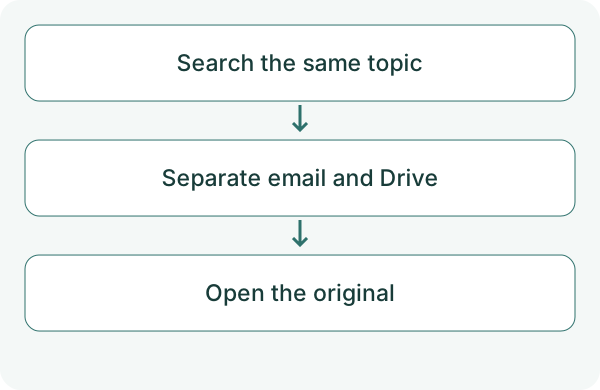
Using AccountHub, search only the Google account I specify for Gmail messages about 'proposal document' from October 1 through October 12, 2026. In Drive, find up to five files whose names contain 'proposal document.' Show email source and date separately from file account and name, with original links. Do not read attachments or file contents, send, edit or delete anything. Distinguish failed searches from zero matches.
Check the result
Check whether a familiar document appears. Keep the email and Drive results separate. An email link may point to an older version, so open the original before deciding.
Finding a candidate does not mean its attachment was downloaded or its contents retrieved. If you need the contents, select one item and check whether its format can be read. If nothing appears, check the account, permissions and spelling of the project term.
Opening the original here means that you open the returned link in your browser. It does not mean that the AI read its contents.
What to try next
Once you can return to the original in one account, try another account holding related documents. The next time you forget the storage location, the same request could help collect candidates.
Try one task with the connection guide
Sources
---
Draft from the AccountHub team. Not written or approved by Uchiyama. Sample prompts are not results from a personal-account test performed for this article. Features and sources checked on October 13, 2026.
Read the setup guide
The guide has the connection steps and example requests for your AI.
Read the setup guide →