
ACCOUNT HUB BLOG
Published:
Email · Gmail · Slack · ChatGPT · Claude
Less copying and pasting from email and chat into AI: an AccountHub use case
A reply arrives. You want to discuss it with AI, then use it to revise a document. Do you start by opening email or chat and copying the text? When we asked an AccountHub user what he finds useful about AccountHub, reducing that preparation was his first answer.
Written by the AccountHub team.

Before the discussion comes the copy and paste
Imagine receiving a reply to a proposal you sent.
You want to ask AI what the other person is concerned about and which parts of the proposal need work.
You open the email, copy the reply and paste it into your AI conversation. If earlier messages matter, you go back and find those too. If someone added context in Slack, you bring that over as well.
You wanted to think about the reply. First, you have to prepare the information for AI to read.
What the user finds useful: moving from a reply to the next task
We asked an AccountHub user, who also works on developing and operating AccountHub, what he finds useful in everyday use. He said:
What I find most useful is that I spend far less effort copying and pasting email and chat content into AI.
For example, I can take a reply I've received and ask AI directly, “What do you think about this?” or “Reflect this in the document.” Being able to move from an exchange into analysis and document creation is a big help.
For the user, the useful part is what happens after reading: discussing how to interpret a reply, then working on the next piece of writing without repeatedly carrying the same information between apps.
An example: turn a proposal reply into suggested revisions
AccountHub lets a supported AI find and refer to information in connected Gmail and Slack accounts. Connect the accounts and AI you want to use first; the official guide explains the setup.
The prompts below illustrate the workflow the user described. They are editorial examples, not a reconstruction of a real project or a recorded session.
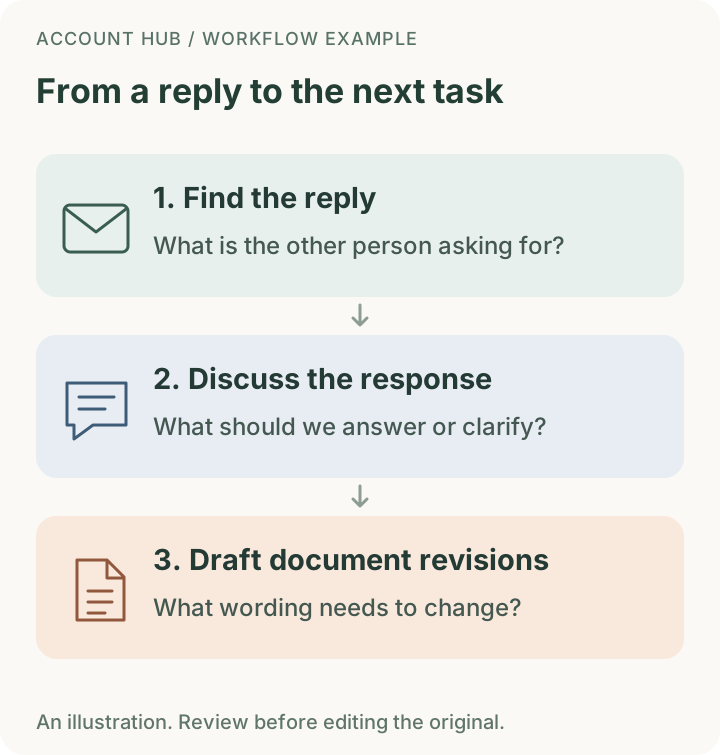
1. Ask AI to find the reply
Instead of bringing the email text yourself, ask AI to find it.
Find the reply about the proposal that arrived yesterday. Summarize what the other person is asking for.
Add the sender or subject if you know it. Check the sender, date and original message to make sure AI found the reply you meant.
2. Discuss the response in the same conversation
Once AI can refer to the reply, continue the discussion.
What do you think about this reply? Separate what we should answer from what we need to clarify first.
You can work through the request and the points you are unsure about, moving from preparing context to thinking about the reply itself.
3. Ask for wording to include in the document
Once you have decided how to respond, move on to the document.
I want to reflect these requests in the proposal. Suggest wording to add and the sections that need revision.
If you want revisions against an existing document, also specify a document or passage your AI can access. You can continue drafting in the same conversation without copying the reply summary into a new one.
This produces suggested wording and revisions. AccountHub's Google Drive connection is read-only, so the request does not automatically update the original file in Drive. Review the suggestions and apply them in your editing tool.
Even this answer started as an AI conversation
The user added a detail about how he wrote his response:
Incidentally, I wrote this reply by asking ChatGPT, “How do I usually use this?” and talking it through together. (Laughs.)
Looking back at everyday work helped him put the benefit into words. His response describes AI as a partner for thinking and writing, as well as finding information.
Start with one reply
If an email or Slack reply is something you would like to discuss with AI, start with that one message. Ask AI to find it through AccountHub, ask what to make of it, and then ask for wording to add to a document if needed.
The user also said that concrete ways of using the service make it easier to recommend than descriptions of new features alone.
If copying and pasting is how you keep connecting correspondence, AI discussion and document work, this is a workflow to try with AccountHub.
Try AccountHub · Read the connection guide
AccountHub is free to use. External AI services have their own access requirements and fees; AccountHub's in-app AI trial has a daily limit. See the pricing page for current terms.
This article is based on a response from an AccountHub user. Quotations have been translated from Japanese. Reduced copying and pasting is his reported experience; no time savings or effectiveness measurements were supplied.
Read the setup guide
The guide has the connection steps and example requests for your AI.
Read the setup guide →