
ACCOUNT HUB BLOG
Published:
Files · Google Calendar · Google Drive · MCP · Comparison
How to make a focused meeting-materials checklist
Written by the AccountHub team.
Turn the meeting and files into one checklist
With AccountHub, you can ask an AI to read a connected Google Calendar event and Drive candidates, then produce one checklist with meeting name, time, purpose, required materials, and sources. This helps before a meeting when you want the few files that matter instead of reopening a large project folder.
A short manual check may be enough
Open the calendar event and note the title, description, participants, attachments, and links. Search Drive by project or file name, then check owner, modified date, folder, and access. Use the agenda or purpose to decide what to exclude. If there are only a few files, manual preparation may be simpler.
Extract a focused list with AccountHub
If calendars and files are split across accounts, connect the needed sources to AccountHub. Ask the AI to match the event context with Drive candidates. Drive is read-only here. The result does not mean a file was downloaded, saved offline, or shared with anyone.
Replace the brackets with your real event, time, and project:
Read the [real meeting name] event at [meeting date and time] from my connected Google Calendar. Summarize its purpose and discussion points from the description and participants, then find related files for [real project name] in my connected Google Drive. For each file, show title, owner, modified date, folder, source link, and access status. Classify it as required, useful, or unclear. Do not mark a file required without evidence in the meeting context. Do not download, edit, move, or grant sharing permissions.
What the checklist means
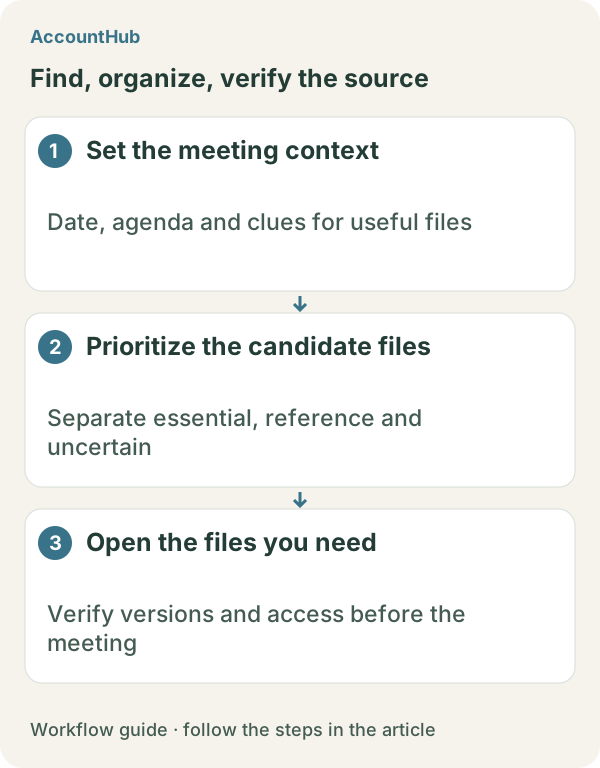
A fictional result might put an agenda note under required, a previous proposal under useful, and an old same-named PDF under unclear. This creates a preparation priority. If a file is inaccessible, open the link yourself or ask the owner to share it. An AI classification does not prove that a file will be used in the meeting or is the latest version.
Try one real meeting
Replace the example fields with a real upcoming meeting and project, and start with about five safe candidates. AccountHub is free to use, but the in-app AI trial has a daily limit. Google Calendar and Drive permissions and your AI service terms are separate. Avoid saving more participant or document content than needed.
This article is an operator explanation based on AccountHub’s official pricing page and guide and Google Drive’s official help. Check AccountHub pricing, the AccountHub guide, and Google Drive search help for current terms.
Start with AccountHub for free. Connect the account you need and try one request through the in-app “Try the AI” entry. To use an external AI assistant, check its connection requirements in the setup guide.
Read the setup guide
The guide has the connection steps and example requests for your AI.
Read the setup guide →