
ACCOUNT HUB BLOG
Published:
Files · Google Drive · MCP · Comparison · Troubleshooting
How to compare Google Drive proposals with similar names
Written by the AccountHub team.
Put similar proposals into one comparison table
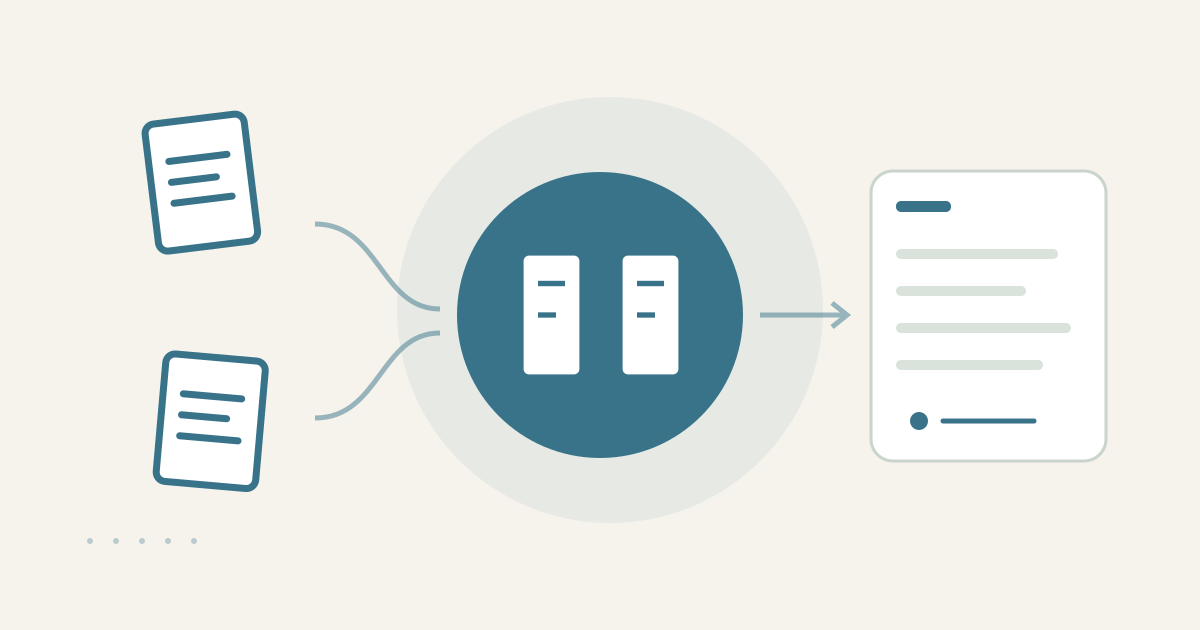
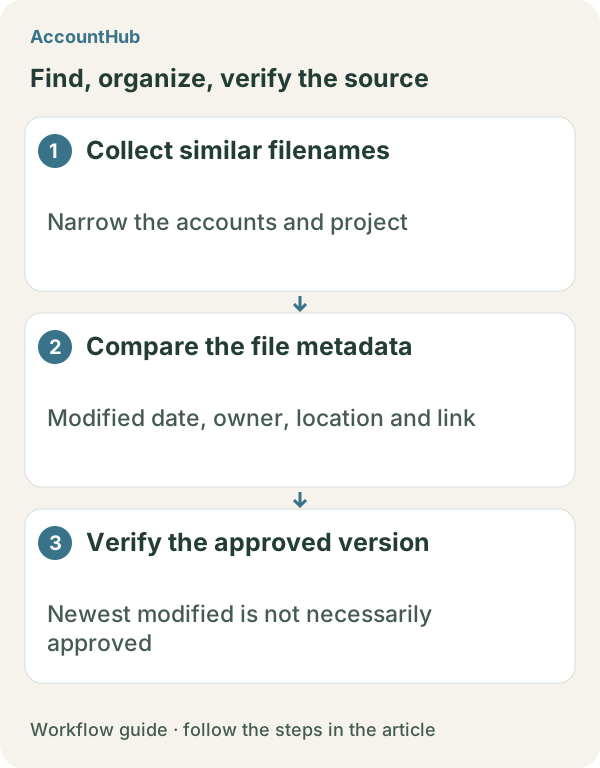
With AccountHub, you can ask an AI to read similar proposal files in connected Google Drives and compare filename, owner, created date, modified date, folder, and account in one table. This is useful when proposal-final, proposal-final2, and customer-review files appear before a meeting. You can organize candidates first and confirm approval with the responsible person or source record.
A newer file is not automatically approved
Sorting by modified date can surface a recent candidate, but the date can reflect a text edit, comment, or rename. It does not prove internal approval or customer review. Ownership, collaborators, and the folder can also distinguish a draft from a review copy. Compare candidates, then verify approval in an email, decision record, or with the owner.
Standard search may be enough
Search Google Drive by project name and file type, then use owner and date filters. If you can open the files, inspect version labels, document dates, comments, and sharing context yourself. A manual comparison is enough when there is one clear candidate and the owner can confirm it.
Ask AccountHub to compare candidates
When similarly named files are spread across Drives, connect the needed accounts to AccountHub. Ask for a read-only comparison with provenance. Do not ask it to approve a file or change sharing permissions.
Replace the brackets with your real project and date range:
Search my connected Google Drives for proposal files related to [real project name] between [start date] and [end date]. Group similarly named candidates and compare filename, owner, created date, modified date, folder, account, and accessible source. Do not treat a newer modified date as proof of an approved latest version. If approval status is not visible, write unknown. Do not edit, move, or change sharing.
What the table can show
A fictional result might place three files in draft, internal review, and customer review folders. The table helps exploration, but folder and filename labels can be changed by people. If an AI calls one file latest, check whether it only means the newest modified date. Use an approval email, meeting record, or owner confirmation to decide which file to use.
Try a narrow free example
Replace the example fields with a real project and period, and start with three safe-to-share candidates. AccountHub is free to use, but the in-app AI trial has a daily limit. Google Drive permissions and your AI service plan are separate. Begin with metadata comparison instead of sending confidential document contents.
This article is an operator explanation based on AccountHub’s official pricing page and guide and Google Drive’s official help. Check AccountHub pricing, the AccountHub guide, and Google Drive search help for current terms.
Start with AccountHub for free. Connect the account you need and try one request through the in-app “Try the AI” entry. To use an external AI assistant, check its connection requirements in the setup guide.
Read the setup guide
The guide has the connection steps and example requests for your AI.
Read the setup guide →