
ACCOUNT HUB BLOG
Published:
Email · Gmail · Multiple accounts · MCP
How to check unread emails across multiple Gmail accounts
Ask your usual AI for unread emails that may need a reply today, with each subject and a reason. AccountHub lets you ask that question about connected Gmail accounts. You decide which messages actually need a reply.
Written by the AccountHub team. Examples are suggested checks, not reported retrieval results.

If you want to see your inboxes together, start with All inboxes in the Gmail app or a multi-account email client. If you want your usual AI to organize unread mail across work and personal Gmail accounts, AccountHub is another option.
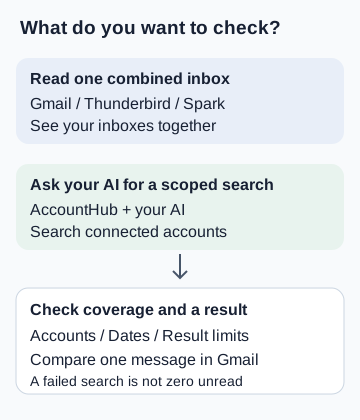
A combined inbox and a search with specific conditions solve different problems. Choose the one you need before adding more connections.
This article is written by the AccountHub team and is based on official documentation and product source, not a hands-on comparison. Official sources rechecked October 13, 2026 (UTC).
Choose a combined inbox or an AI search
| Method | Best fit | Cost and conditions |
|---|---|---|
| Gmail app | See multiple inboxes together | No separate paid app is needed for All inboxes. Google account and organization conditions are separate |
| Thunderbird | Use a desktop email client with unified folders | Free and open source. Account setup is required |
| Spark | Use a unified inbox, with optional in-app AI | Unified Inbox is included in Free. AI access varies by plan; check the current official conditions |
| AccountHub | Search connected Gmail accounts through your AI | Check current availability on the pricing page. External AI subscriptions and access conditions are separate |
You do not need a paid Spark plan just for its free unified inbox. If you also want AI features, check the eligible plans and billing terms on the official pricing page.
When an email app is enough
On Android, add your accounts to Gmail, then open All inboxes from the menu. This changes the view; it does not merge your accounts. Follow Google's setup instructions.
Gmail's Multiple inboxes setting is different: it divides one account's view using search criteria. Do not confuse it with cross-account access.
On desktop, consider Thunderbird's unified folders. Spark also provides a free unified inbox. Start there if seeing your mail together is all you need.
Start with a read-only AccountHub check
Signing into AccountHub does not connect Gmail automatically. Start by connecting one Google account you need and checking that Gmail is available for it. Check your employer's policies and administrator restrictions first.
Follow the setup guide. The public guide also provides an in-app AI route. If you use an external assistant, check its current connection requirements too.
Keep the first request small so you can verify it:
Use AccountHub to list the labels of my connected Gmail accounts. Search only the one account I specify for unread inbox mail received in the last 7 days, with at most 5 results. Show the account label, sender, subject, and received time for each result. Only search and show results. Do not mark anything as read, move, delete, or reply to it. Tell me about any account you could not search or any retrieval limit.
This is a proposed test prompt, not a report of retrieving someone's mail. Specify one account using its actual connected account label.
For a fixed Gmail query, use in:inbox is:unread newer_than:7d. The product source includes a read-only tool that accepts Gmail query syntax and specific account labels. Remove in:inbox if you also want unread mail outside the inbox. See Google's search operators for the meaning of these conditions.
Check coverage and one original message
First, check whether the specified account was searched successfully. An authentication failure is not an unread count of zero.
Then compare one account label and subject with the original message in Gmail. A seven-day window and five-result limit do not count all unread mail. Results curated by a natural-language search are not necessarily a complete unread count either.
If that message matches, add the second account and try the same search across both. Check that each account was searched successfully.
Then try a condition that helps you: for example, ask for possible emails needing a reply today, with a reason and the original subject. Make the final decision yourself.
What to try next
If a combined inbox is enough, keep using Gmail or your email client.
If you want to discuss your mail with your usual AI without switching accounts, use the AccountHub guide to check unread mail from one account first. Add the second account after you can verify the first result.
To choose an AI connection method, see the comparisons for multiple accounts in Claude and multiple accounts in ChatGPT.
Try one Gmail unread check
Connect one account first, then compare up to five read-only results with the original messages in Gmail.
Try one Gmail unread check →Compare multiple accounts in Claude
When choosing an AI connection, compare the built-in option and AccountHub before adding another tool.
Compare multiple accounts in Claude →