
ACCOUNT HUB BLOG
Published:
Files · Gmail · Google Drive · Multiple accounts · MCP · Comparison
How to find the original Google Drive file from a name in email
Written by the AccountHub team.
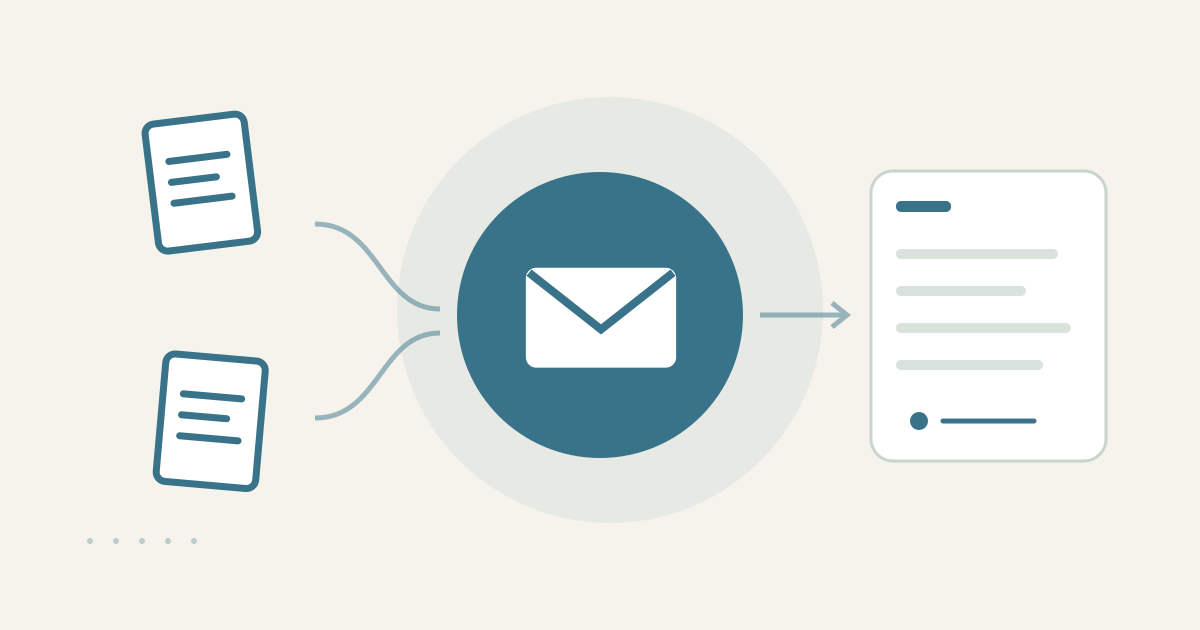
Join an email file name to Drive candidates
With AccountHub, you can ask an AI to read a file name and its sender, date, and project context from Gmail, then compare it with same-named Google Drive candidates in one table. This is useful when an email says to use the Drive original and several copies have nearly identical names. You can organize evidence first, then open the likely source yourself.
Preserve context with standard search
Search Gmail for part of the file name and check sender, received date, project wording, and any Drive link in the message. Google’s official help documents Gmail search operators. In Drive, search the same name or file type and compare owner, created date, modified date, folder, and sharing state. A matching filename alone does not prove that the file is the original. If the email contains a link, compare its destination with the Drive candidates.
Link the sources through AccountHub
If Gmail and Drive are in different accounts, connect the required sources to AccountHub. Ask the AI to place email evidence and Drive candidates side by side. Drive remains read-only for this workflow. The email sender may not own the source, and a newer copy is not automatically the original.
Replace the brackets with your real file clue, project, and period:
Search Gmail between [start date] and [end date] for messages containing [real file name or phrase]. Extract sender, received time, project context, and any Drive link. Then search my connected Google Drive accounts for same-named or similar candidates. Make a table with owner, created date, modified date, folder, account, URL, and whether each candidate matches the email link. Do not call a file original from its name alone. Write unknown when evidence is missing. Do not edit, move, or change sharing.
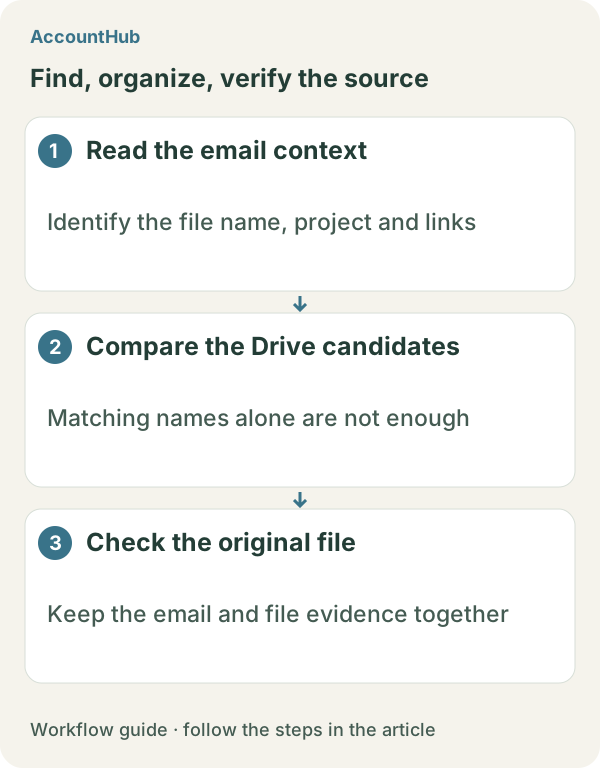
Verify original status yourself
A fictional result might show the email link leading to proposal-review while another same-named file is proposal-copy. A linked destination is useful evidence, but access does not prove approval or latest status. Open the link yourself and confirm with the sender or project owner when needed. If there is no link, the candidate cannot be read, or the account differs, retain the item as unconfirmed instead of guessing.
Try a small free case
Replace the example fields with a real file clue and period, then start with one safe email and a few candidates. AccountHub is free to use, but the in-app AI trial has a daily limit. Gmail and Google Drive permissions and your AI service terms are separate. Begin with metadata instead of saving confidential message bodies or links.
This article is an operator explanation based on AccountHub’s official pricing page and guide and official Gmail and Google Drive help. Check AccountHub pricing, the AccountHub guide, Gmail search help, and Google Drive search help for current terms.
Start with AccountHub for free. Connect the account you need and try one request through the in-app “Try the AI” entry. To use an external AI assistant, check its connection requirements in the setup guide.
Read the setup guide
The guide has the connection steps and example requests for your AI.
Read the setup guide →