
ACCOUNT HUB BLOG
Published:
Files · Google Drive · Multiple accounts · MCP · Troubleshooting
How to find study materials across personal and work Google Drives
Written by the AccountHub team.
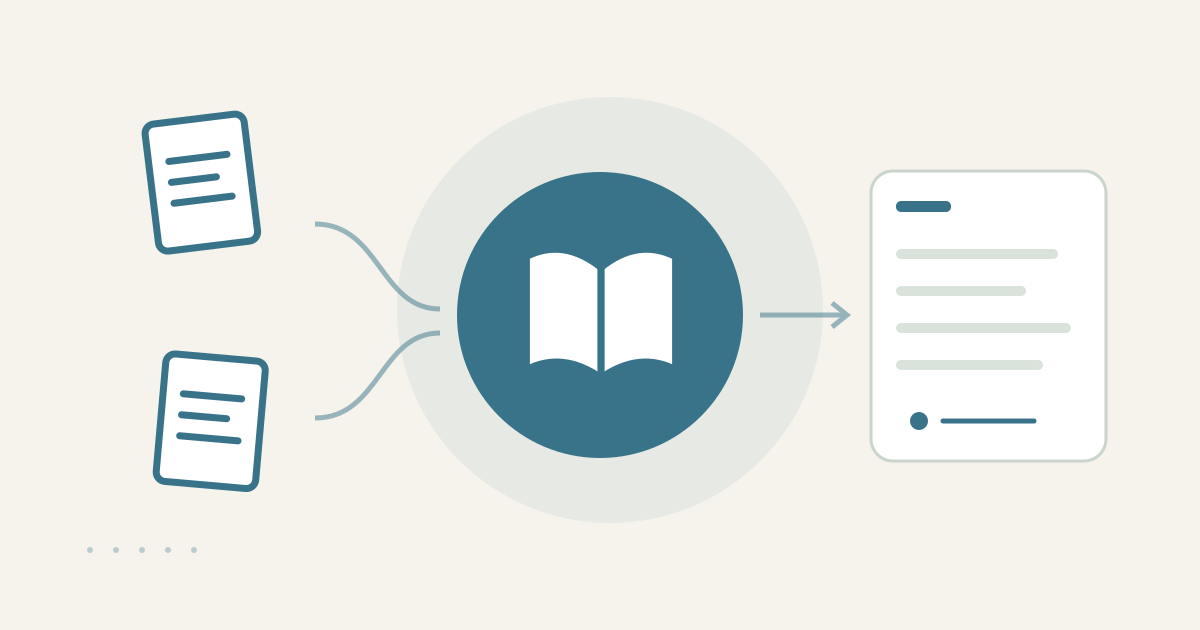
Make one candidate list from two Drives
With AccountHub, you can ask an AI to read connected personal and work Google Drives and list study materials by event name, date, creator, folder, account, and source. This helps when you cannot remember where a workshop slide deck was saved. You can identify likely originals first, then check whether you are allowed to open them.
Search manually first
Search Google Drive with the workshop name, speaker, or month. Switch between work and personal accounts and use file type or owner filters. If one standard search gives a clear result, no additional tool is needed. Check owner, created date, modified date, and folder rather than relying on the title.
Keep source and readable content separate
When you need a cross-account candidate list, connect the required accounts to AccountHub. Ask the AI to show the account and provenance for every result. Drive access is read-only. Seeing a candidate does not prove that the file body, images, or attachments can be read; that depends on sharing settings and connector permissions. A file that cannot be read should not be summarized by guesswork.
Replace the brackets with your real workshop, dates, and creator if known:
Search my connected personal and work Google Drives for materials related to [real workshop name] between [start date] and [end date]. List filename, owner, created date, modified date, folder, account, and source link. Separate possible candidates from likely source files. If the body cannot be read, label it as a permission or retrieval limitation. Do not fill missing content by inference, and do not edit, move, or change sharing.
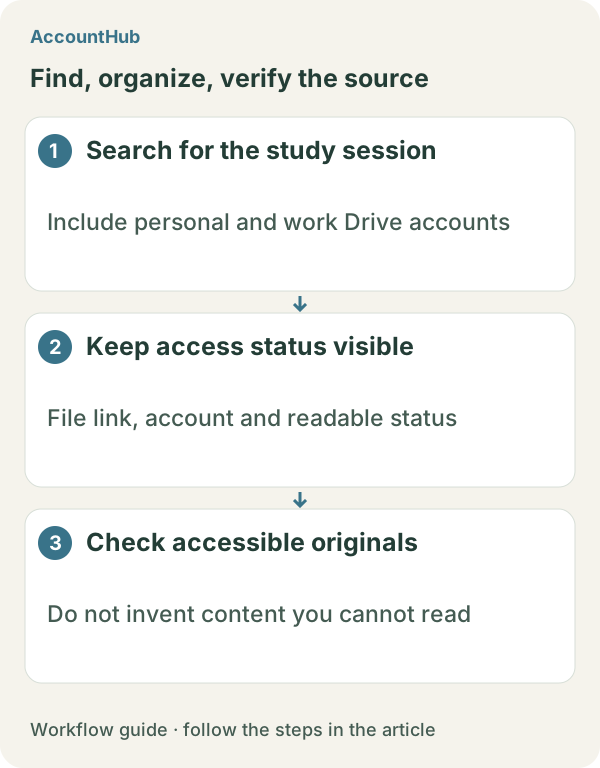
What the result can show
A fictional result might list the instructor’s slide deck in the work Drive and your notes in the personal Drive. Ownership alone does not prove that a file is the latest version or that reuse is permitted. If a link will not open, check permission yourself or ask the organizer to share it. The candidate table is a starting point for finding the material, not a replacement for access to its contents.
Try a small free search
Replace the example fields with a real workshop and one month of dates. Start with metadata that is safe to share. AccountHub is free to use, but the in-app AI trial has a daily limit. Drive permissions and your AI service terms are separate. Avoid saving attendee names or private slides unless necessary.
This article is an operator explanation based on AccountHub’s official pricing page and guide and Google Drive’s official help. Check AccountHub pricing, the AccountHub guide, and Google Drive search help for current terms.
Start with AccountHub for free. Connect the account you need and try one request through the in-app “Try the AI” entry. To use an external AI assistant, check its connection requirements in the setup guide.
Read the setup guide
The guide has the connection steps and example requests for your AI.
Read the setup guide →